Help Center
Create a New Slide

Overview
Create a new slide from scratch or using a template.
Steps:
1. Go to Slides from the sidebar
2. Click the "Create Slide" button
3. The visual editor will open
4. Choose a canvas size (landscape 1920×1080 is common for TVs)
5. Add elements: images, text, shapes, widgets
6. Arrange layers using drag and drop
7. Set background color or image
8. Click "Save" to save your slide
The editor supports:
• Drag-and-drop placement of elements
• Layer ordering (bring to front, send to back)
• Text formatting (font, size, color, alignment)
• Image cropping and resizing
• Widget insertion (clock, weather, ticker, etc.)
• Undo/Redo actions
Tip: Use landscape orientation (1920×1080) for most TV screens.
Steps:
1. Go to Slides from the sidebar
2. Click the "Create Slide" button
3. The visual editor will open
4. Choose a canvas size (landscape 1920×1080 is common for TVs)
5. Add elements: images, text, shapes, widgets
6. Arrange layers using drag and drop
7. Set background color or image
8. Click "Save" to save your slide
The editor supports:
• Drag-and-drop placement of elements
• Layer ordering (bring to front, send to back)
• Text formatting (font, size, color, alignment)
• Image cropping and resizing
• Widget insertion (clock, weather, ticker, etc.)
• Undo/Redo actions
Tip: Use landscape orientation (1920×1080) for most TV screens.
Step by Step Guide
Step 1: Go to Slides page
Click "Slides" in the sidebar to see all your slides in a grid view.
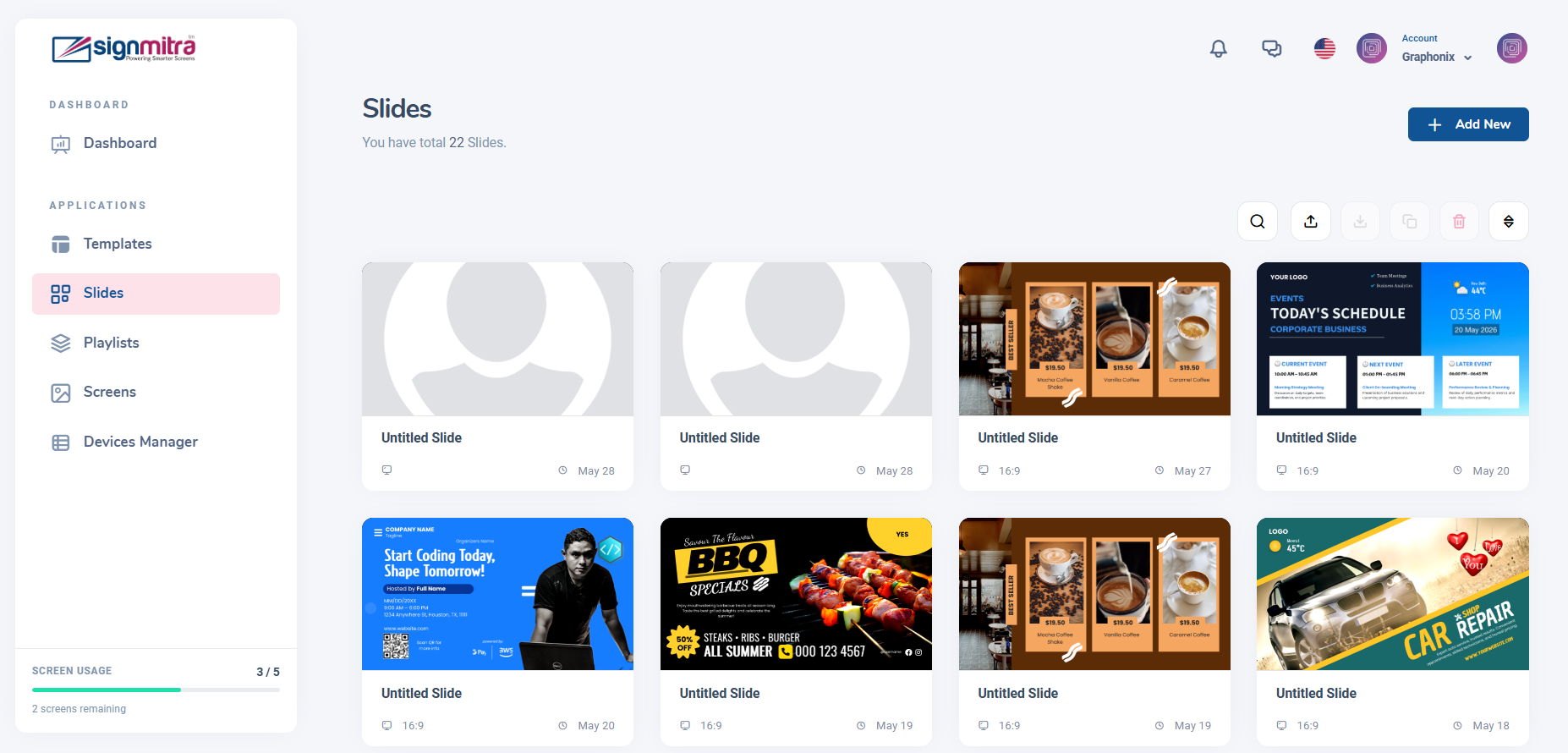
Slides page with grid view of all slides
Step 2: Click Create Slide
Click the "Create Slide" button at the top of the page.
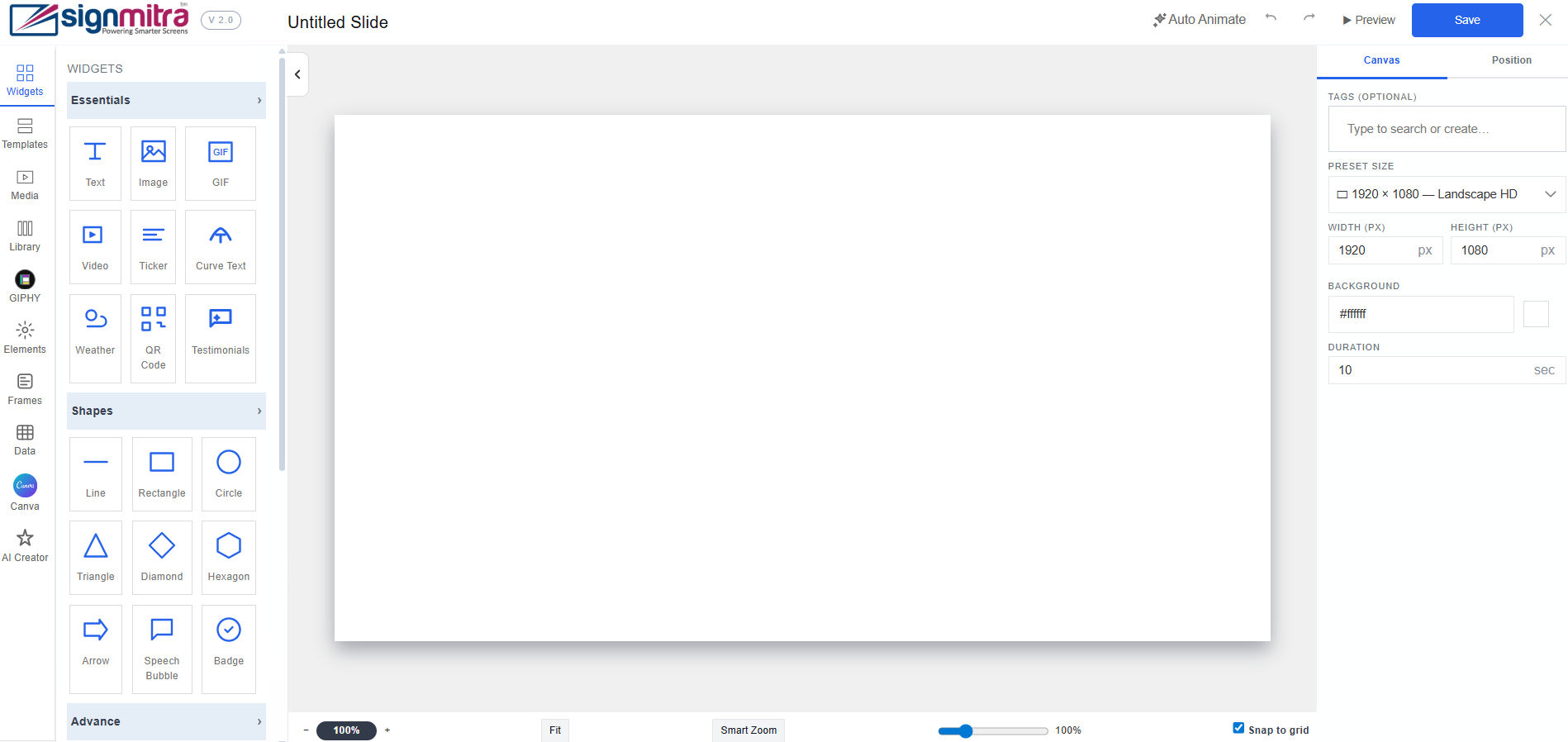
Create Slide button highlighted
Step 3: Signmitra Editor opens
The visual editor opens with a blank canvas. Use the left panel to add elements.
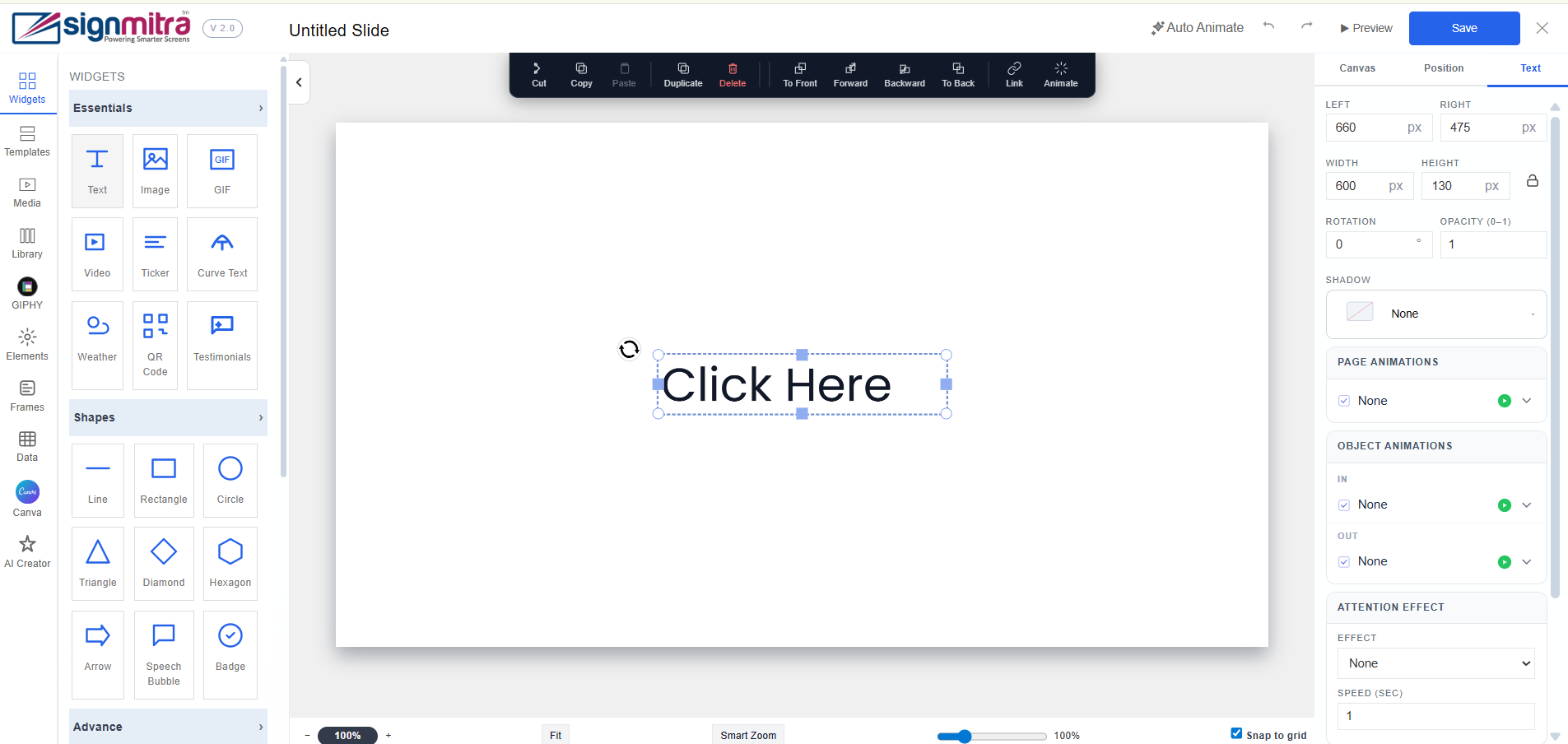
Signmitra Editor opens
Step 4: Add elements and save
Add text, images, widgets. Arrange on canvas. Click "Save" when done.
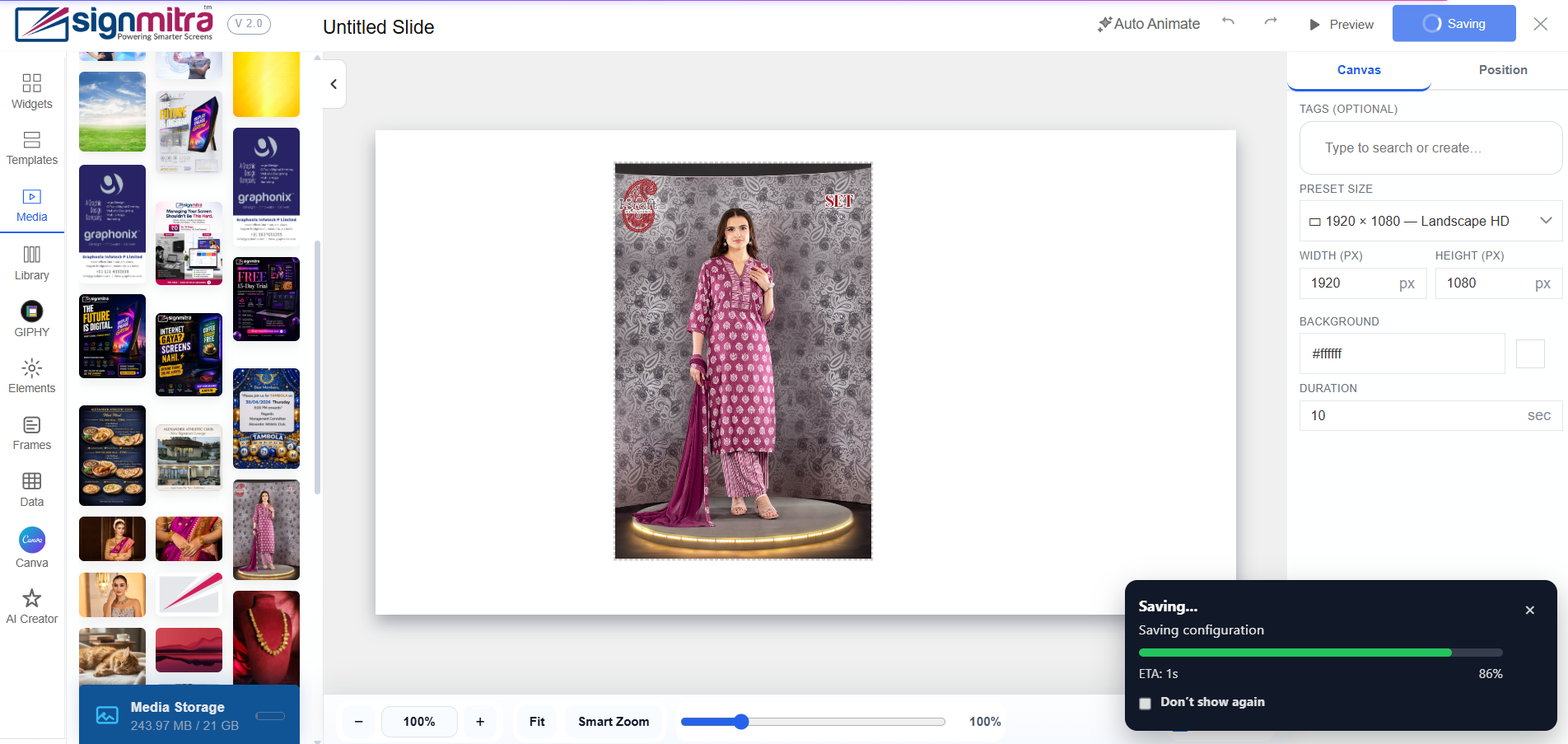
Editor with content elements placed on canvas
Frequently Asked Questions
What canvas size should I use?
For most TVs, use 1920×1080 (Full HD landscape). For vertical screens, use 1080×1920.
Can I use templates?
Yes, you can import template JSON files or duplicate existing slides as templates.
Was this article helpful?
Related Articles
Search Other Topics
Still need help?
Our team can help you with setup, device pairing, scheduling, and billing.