Help Center
Create a Playlist

Overview
Create a playlist to organize your slides for screen playback.
Steps:
1. Go to Playlists from the sidebar
2. Click "Create Playlist"
3. Enter a playlist name
4. Click "Add Slides" to select slides from your library
5. Set the display duration for each slide (e.g., 10 seconds)
6. Drag slides to reorder the playback sequence
7. Click "Save"
The playlist is now ready to be assigned to a screen.
Tip: Keep playlists focused — one playlist per promotion topic works best.
Steps:
1. Go to Playlists from the sidebar
2. Click "Create Playlist"
3. Enter a playlist name
4. Click "Add Slides" to select slides from your library
5. Set the display duration for each slide (e.g., 10 seconds)
6. Drag slides to reorder the playback sequence
7. Click "Save"
The playlist is now ready to be assigned to a screen.
Tip: Keep playlists focused — one playlist per promotion topic works best.
Step by Step Guide
Step 1: Open Playlists page
Click "Playlists" in the sidebar to view all playlists.
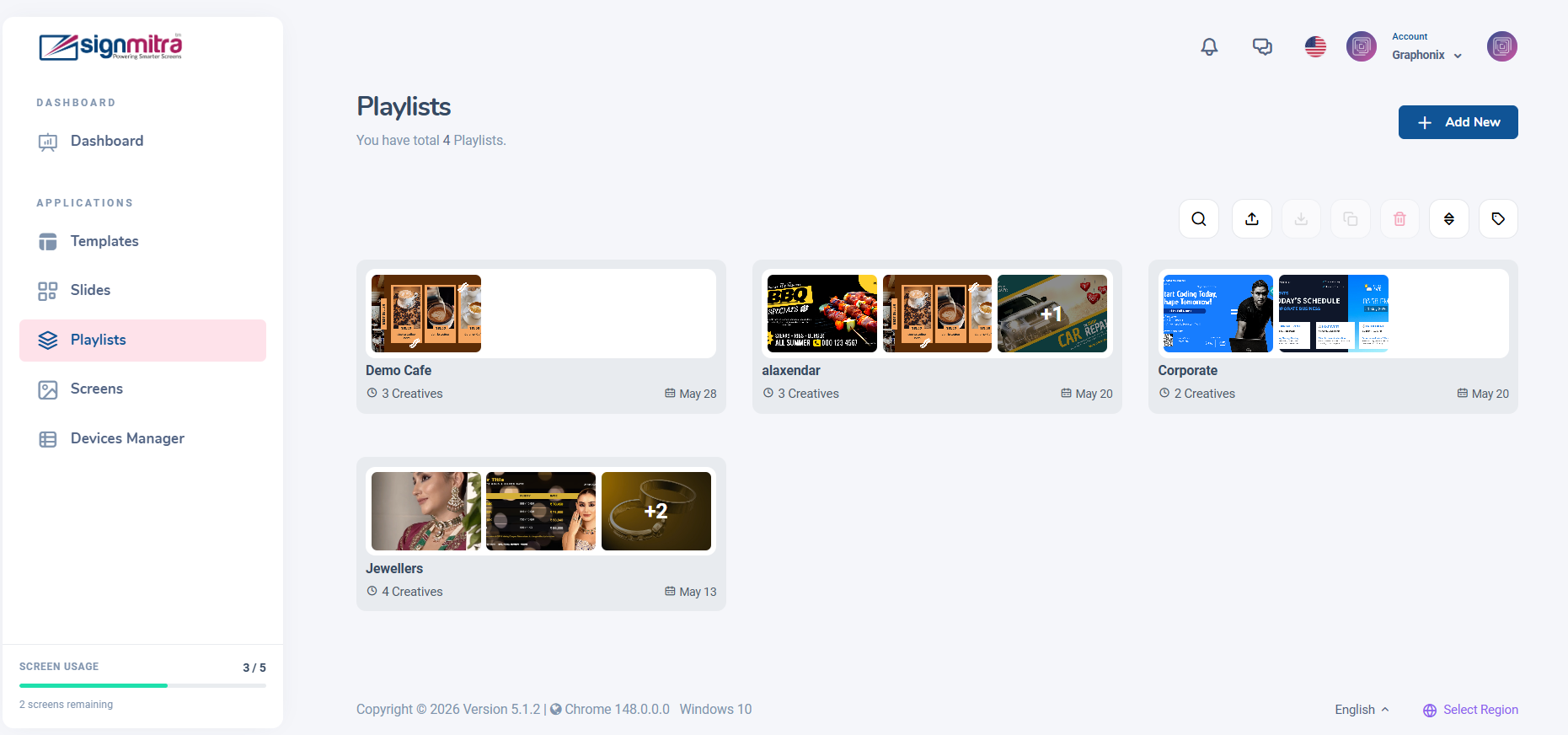
Playlists page with list of all playlists
Step 2: Click Create Playlist
Click the "Create Playlist" button.
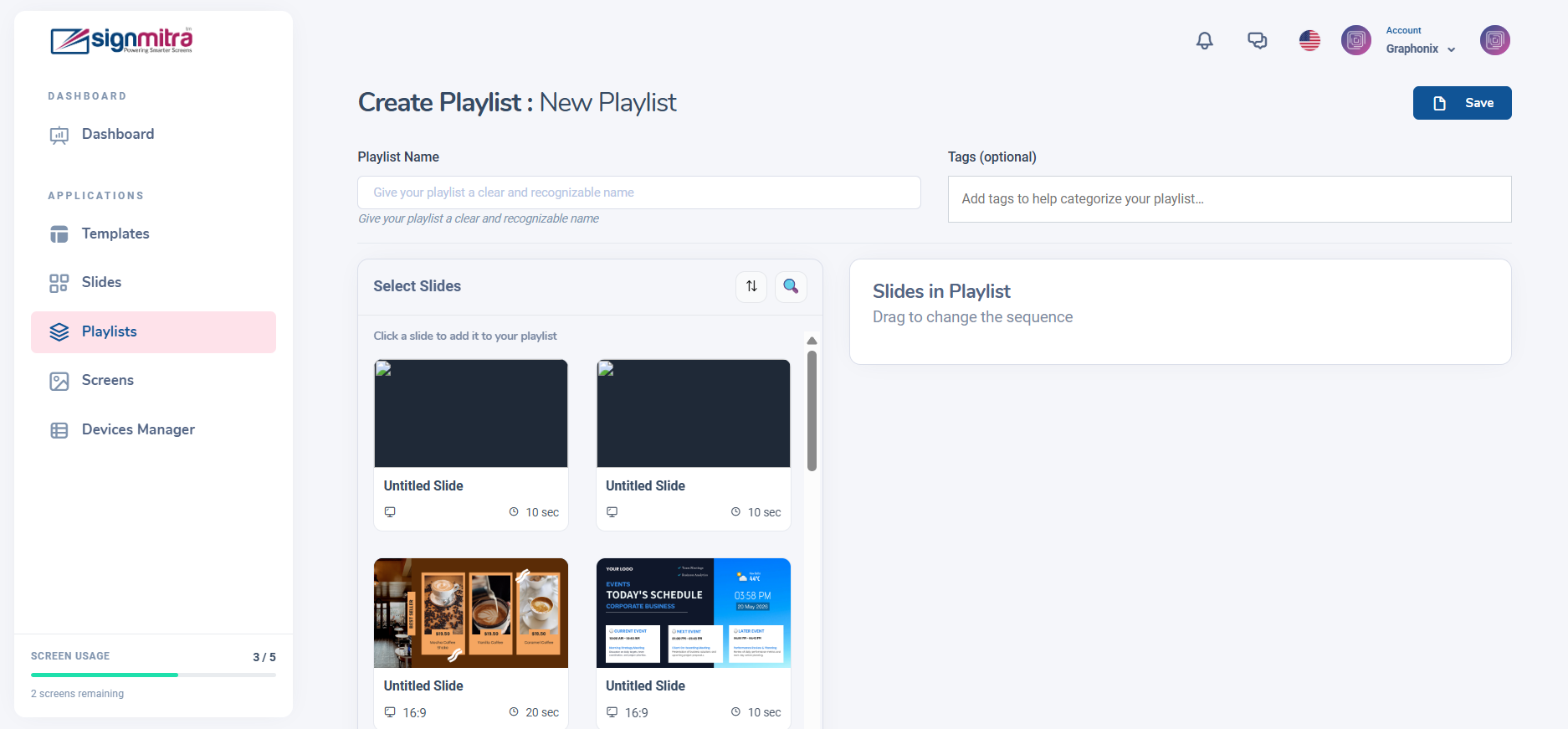
Create Playlist button
Step 3: Add slides to playlist
Select slides from your library and add them to the playlist. Set duration for each.
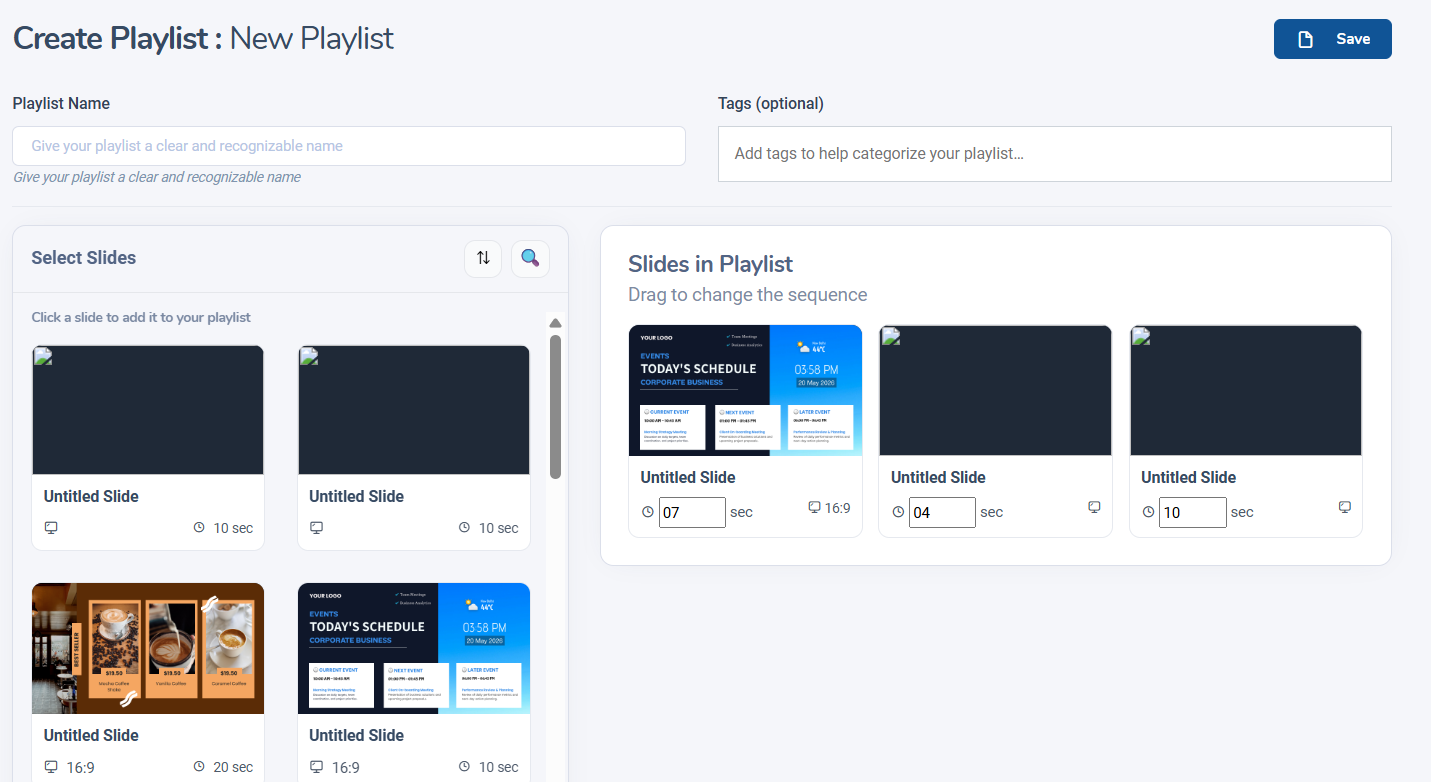
Adding slides to playlist with duration settings
Step 4: Save the playlist
Arrange the order by dragging, then click "Save".
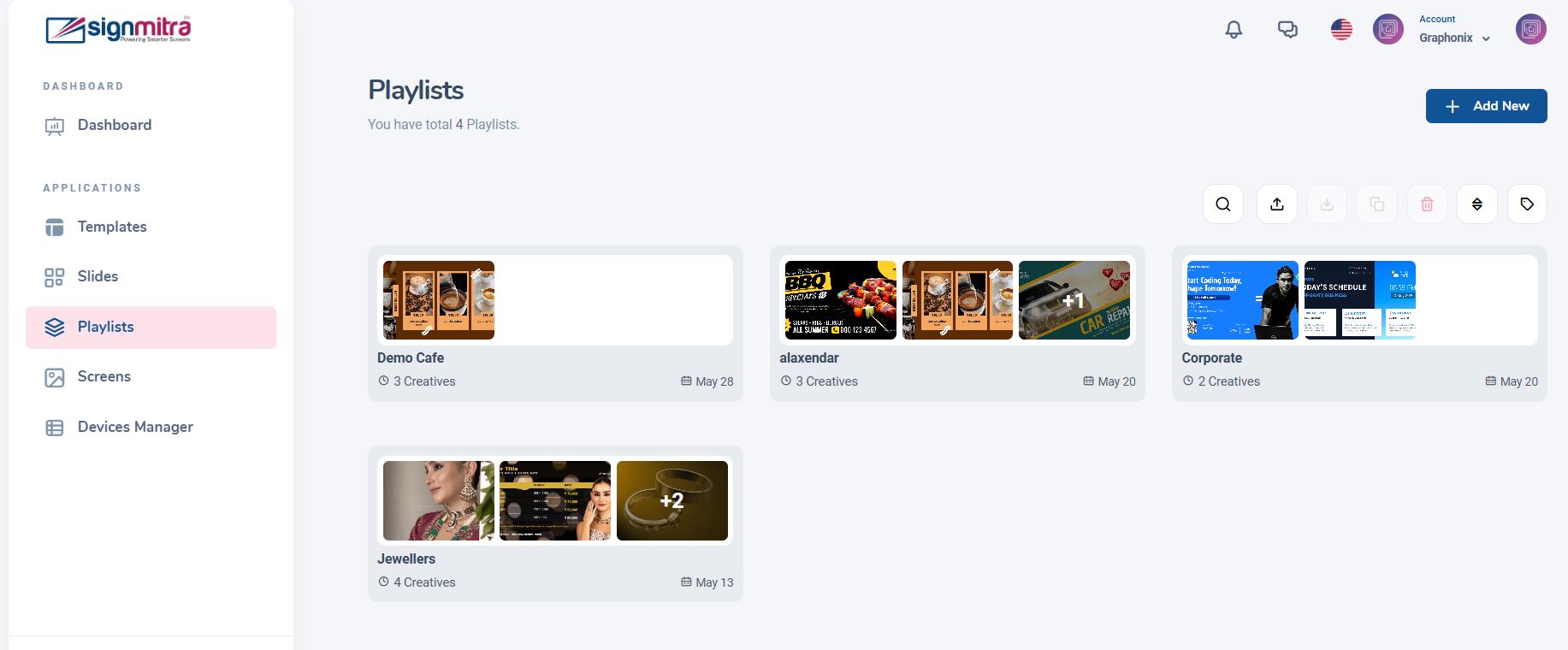
Playlist editor with ordered slides
Frequently Asked Questions
Can one playlist contain both images and videos?
Yes, a playlist can contain slides with any type of content — images, videos, widgets, or mixed.
How do I set different durations per slide?
When adding slides to a playlist, each slide has its own duration setting. Set individually.
Was this article helpful?
Related Articles
Search Other Topics
Still need help?
Our team can help you with setup, device pairing, scheduling, and billing.