Help Center
Edit an Existing Slide

Overview
Edit any slide to update content, images, or layout.
Steps:
1. Go to Slides from the sidebar
2. Find the slide you want to edit
3. Click the slide thumbnail or the "Edit" button
4. The visual editor opens with the slide loaded
5. Make your changes (update text, swap images, reposition elements)
6. Click "Save" to save changes
Note: If this slide is already in an active playlist, the changes will sync to the player on the next refresh cycle. No need to re-assign the playlist.
Steps:
1. Go to Slides from the sidebar
2. Find the slide you want to edit
3. Click the slide thumbnail or the "Edit" button
4. The visual editor opens with the slide loaded
5. Make your changes (update text, swap images, reposition elements)
6. Click "Save" to save changes
Note: If this slide is already in an active playlist, the changes will sync to the player on the next refresh cycle. No need to re-assign the playlist.
Step by Step Guide
Step 1: Find the slide
Go to Slides page and locate the slide you want to edit.

Slides grid with hover showing edit option
Step 2: Click Edit
Click on the slide thumbnail or the Edit button to open the editor.

Edit button on slide card
Step 3: Make changes
Modify text, images, or layout in the editor.
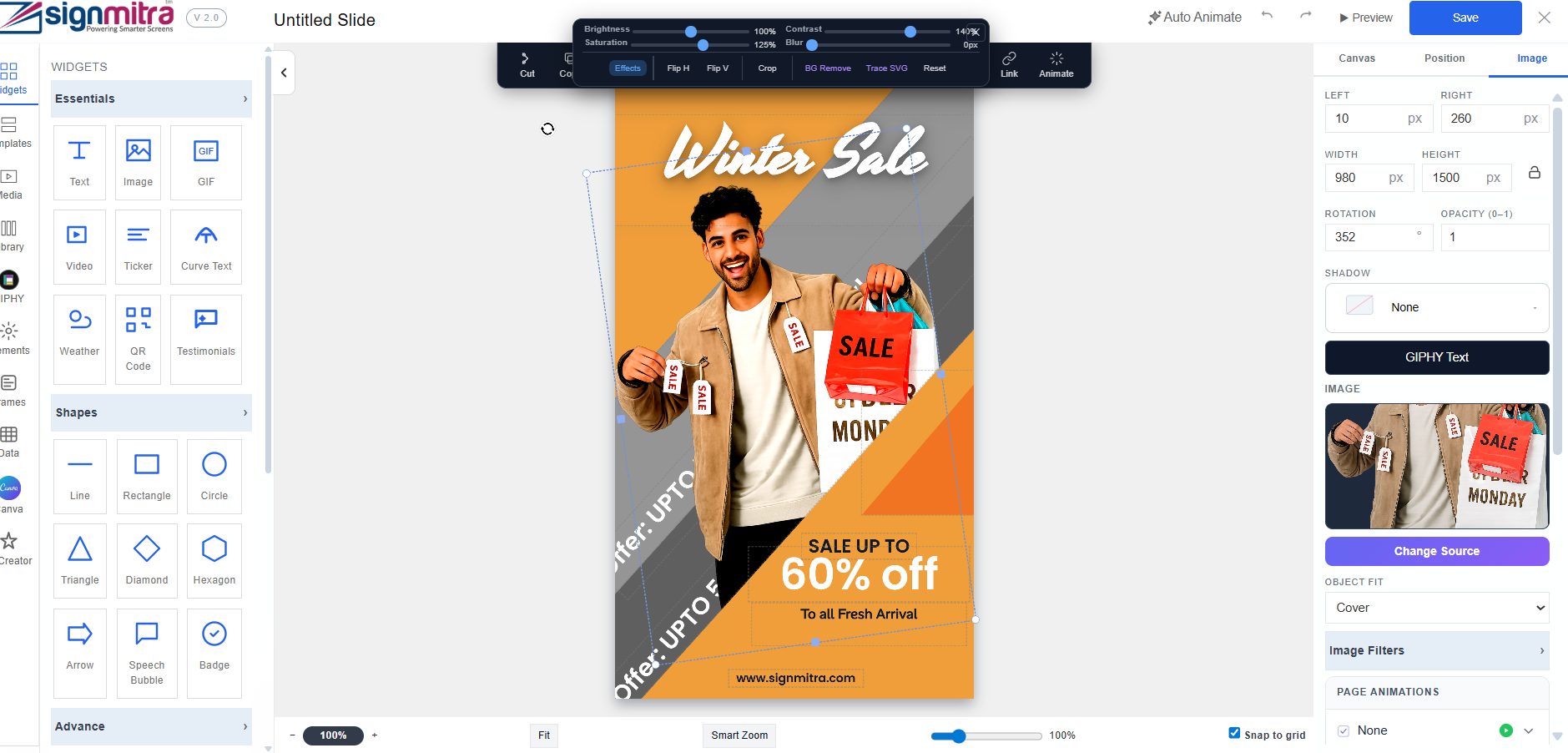
Editor showing modifications in progress
Step 4: Save changes
Click "Save" to save your changes. They sync to the player automatically.
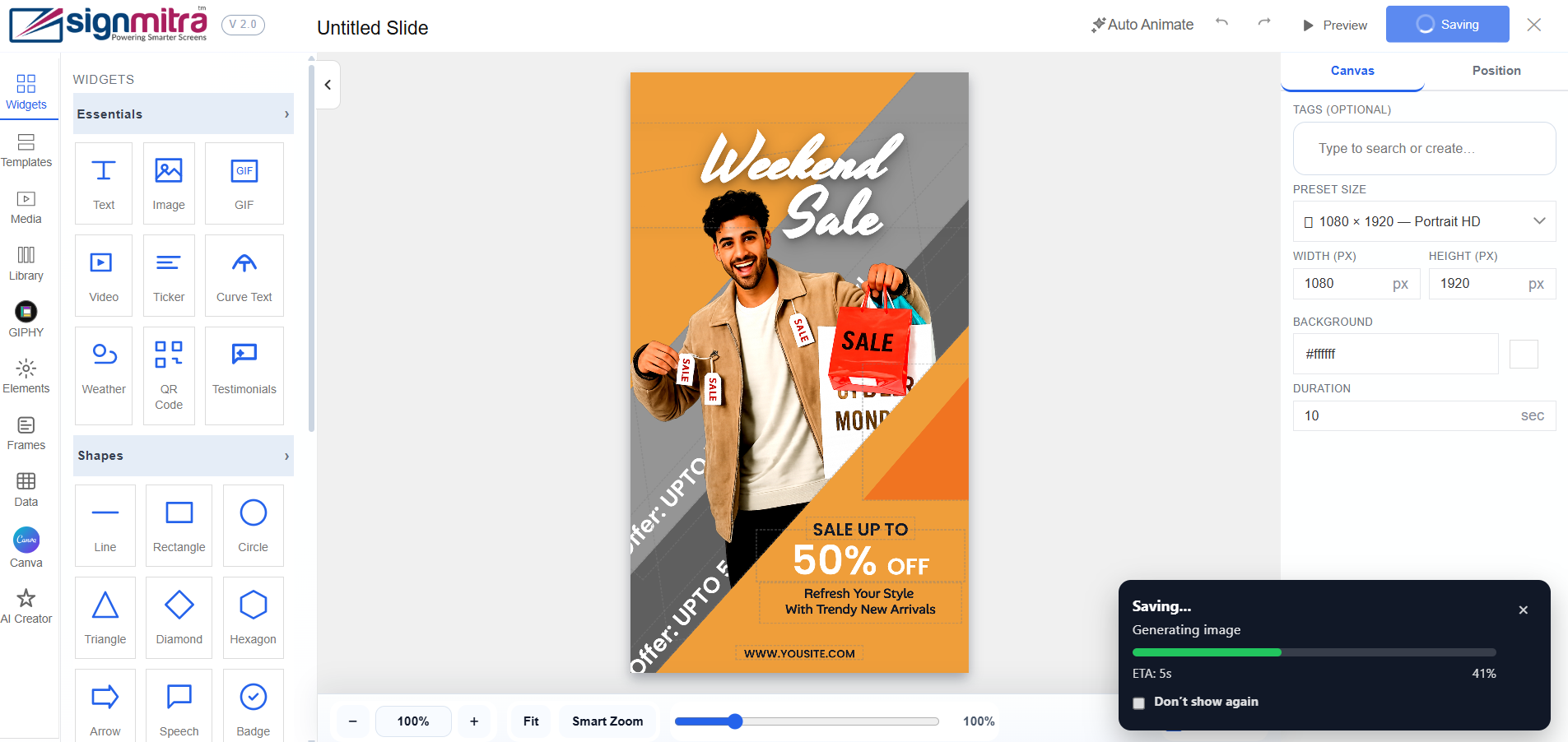
Save button in editor toolbar
Was this article helpful?
Related Articles
Search Other Topics
Still need help?
Our team can help you with setup, device pairing, scheduling, and billing.