Help Center
Install Signmitra Player from Google Play Store

Player & Installation
Install Signmitra Player from Google Play Store
Download and install the Signmitra Player app on your Android TV.
Overview
The Signmitra Player app runs on Android TV, Fire TV, and Android devices.
Installation Steps:
1. On your Android TV or Fire TV, open the Google Play Store
2. Search for "Signmitra Player"
3. Click "Install"
4. Wait for the download and installation to complete
5. Open the Signmitra Player app
6. The app shows a pairing screen (QR code or Screen Key)
Supported devices:
• Android TV (Sony, TCL, Xiaomi, Hisense, etc.)
• Amazon Fire TV Stick (all models)
• Android TV boxes (Mi Box, NVIDIA Shield, etc.)
• Android tablets and phones (for testing)
Requirements:
• Stable internet connection (Wi-Fi or Ethernet)
• Android 5.0 or higher
• At least 100MB free storage
Installation Steps:
1. On your Android TV or Fire TV, open the Google Play Store
2. Search for "Signmitra Player"
3. Click "Install"
4. Wait for the download and installation to complete
5. Open the Signmitra Player app
6. The app shows a pairing screen (QR code or Screen Key)
Supported devices:
• Android TV (Sony, TCL, Xiaomi, Hisense, etc.)
• Amazon Fire TV Stick (all models)
• Android TV boxes (Mi Box, NVIDIA Shield, etc.)
• Android tablets and phones (for testing)
Requirements:
• Stable internet connection (Wi-Fi or Ethernet)
• Android 5.0 or higher
• At least 100MB free storage
Step by Step Guide
Step 1: Open Google Play Store on TV
On your Android TV, navigate to the Google Play Store app.
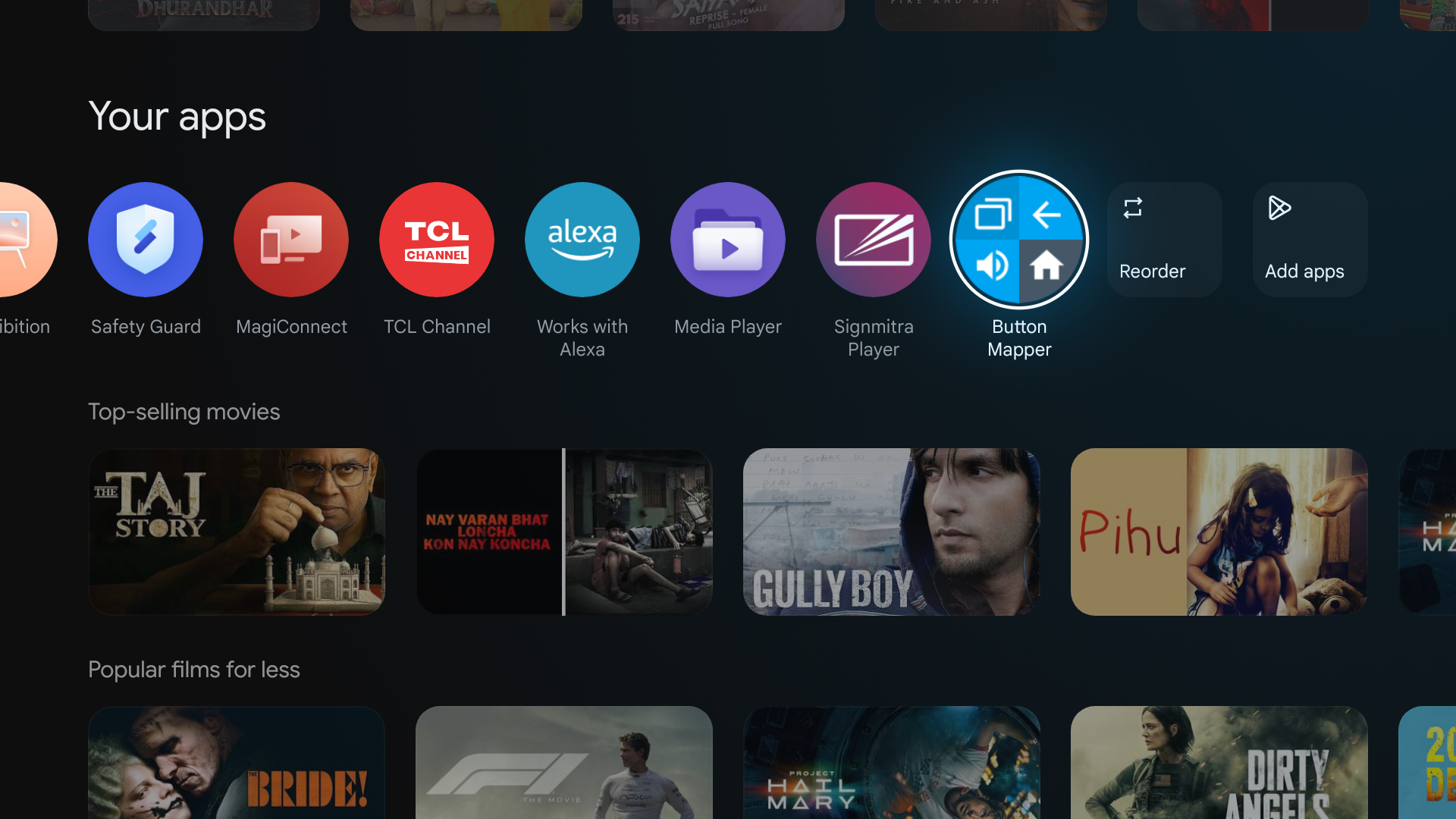
Google Play Store on Android TV
Step 2: Search for Signmitra Player
Use the search bar to find "Signmitra Player".
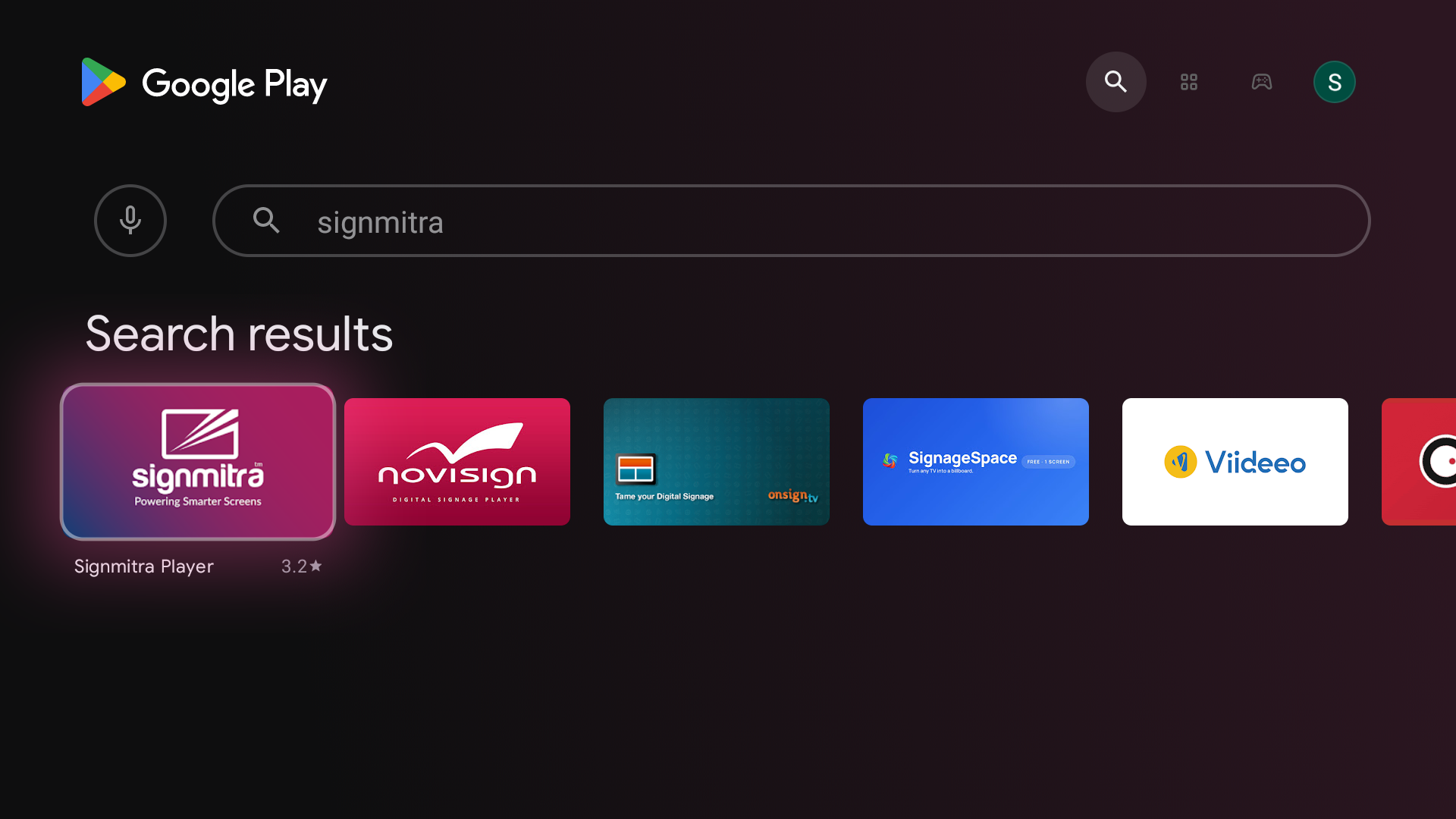
Search results showing Signmitra Player
Step 3: Install the app
Click "Install" and wait for the download to complete.
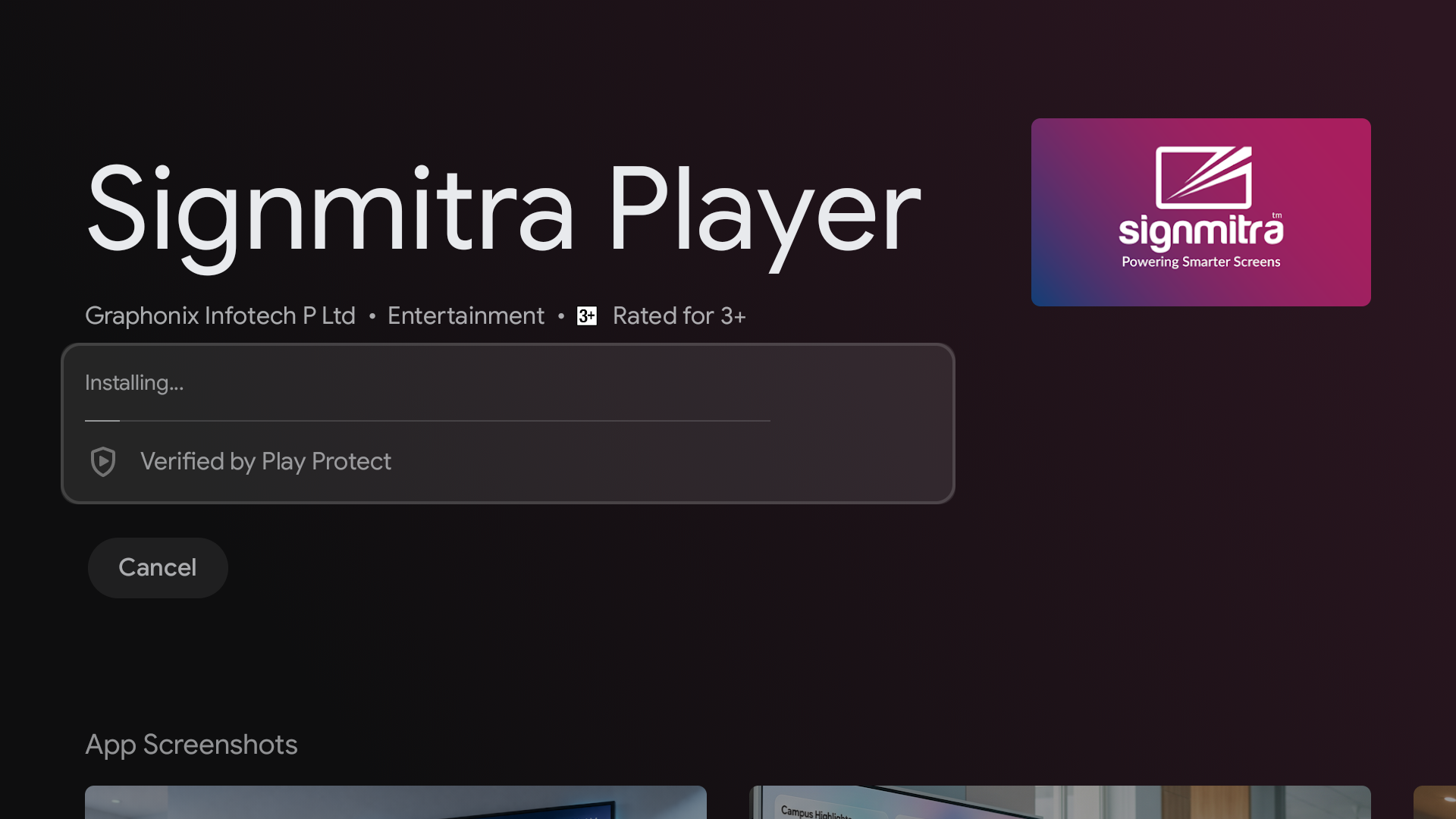
Install button on Signmitra Player listing
Step 4: Open the app
Launch Signmitra Player. The pairing screen appears with QR code and Screen Key options.
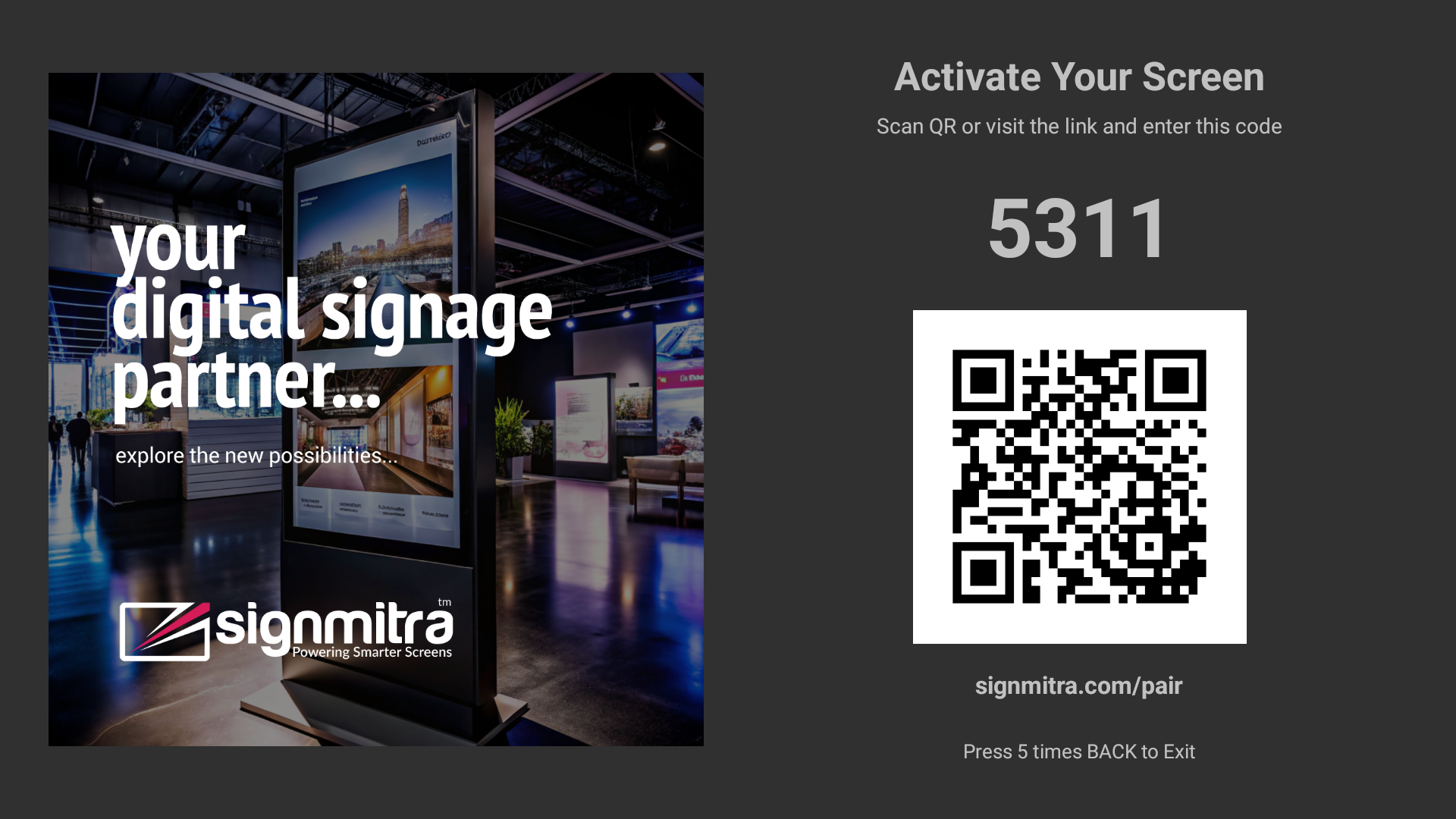
Signmitra Player showing pairing options
Frequently Asked Questions
What Android version is required?
Android 5.0 (Lollipop) or higher is required for the Signmitra Player app.
Does the player work on regular Android phones?
Yes, you can install and test on any Android device, but it is designed primarily for Android TV.
Was this article helpful?
Related Articles
Search Other Topics
Still need help?
Our team can help you with setup, device pairing, scheduling, and billing.